Attendance
Review your attendance, request regularization, and act on team regularization requests.
Use Attendance for your own attendance records and attendance regularization workflows involving you.
Attendance views
Use the navigation at the top of the page to switch between your regularization requests, requests awaiting your approval, and your attendance register.

This employee self-service area does not require a separate module permission. Your own information appears automatically; approval requests appear when you are connected to the requester through the configured reporting or approval workflow.
My Regularization
My Regularization shows the history and current state of attendance corrections you submitted.
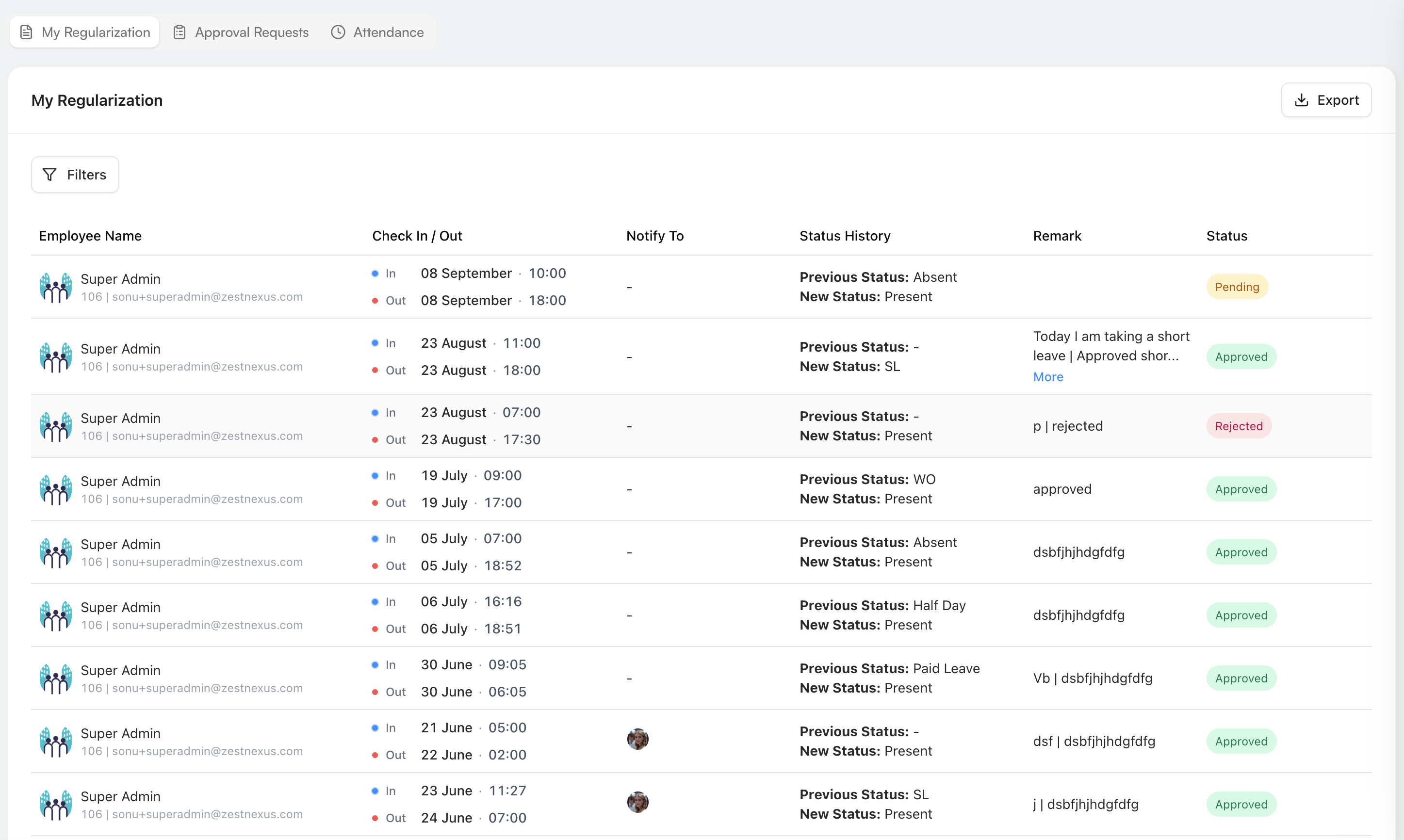
| Field or action | What it shows |
|---|---|
| Filters | Narrows the regularization history using the available criteria. |
| Export | Downloads the regularization data currently available to you. |
| Employee Name | Your name, employee identifier, and email. |
| Check In / Out | The requested check-in and check-out dates and times. |
| Notify To | The user or users notified about the request, when configured. |
| Status History | The previous attendance status and the requested new status. |
| Remark | The reason or notes recorded for the request. Select More when a longer remark is truncated. |
| Status | The current result, such as Pending, Approved, or Rejected. |
You can start a regularization from an eligible attendance day, including the + action in the dashboard's Working History widget or Attendance Requests under New Request.
Submit a regularization request
Use the Attendance Requests form to provide the attendance record that should replace or correct the existing result.
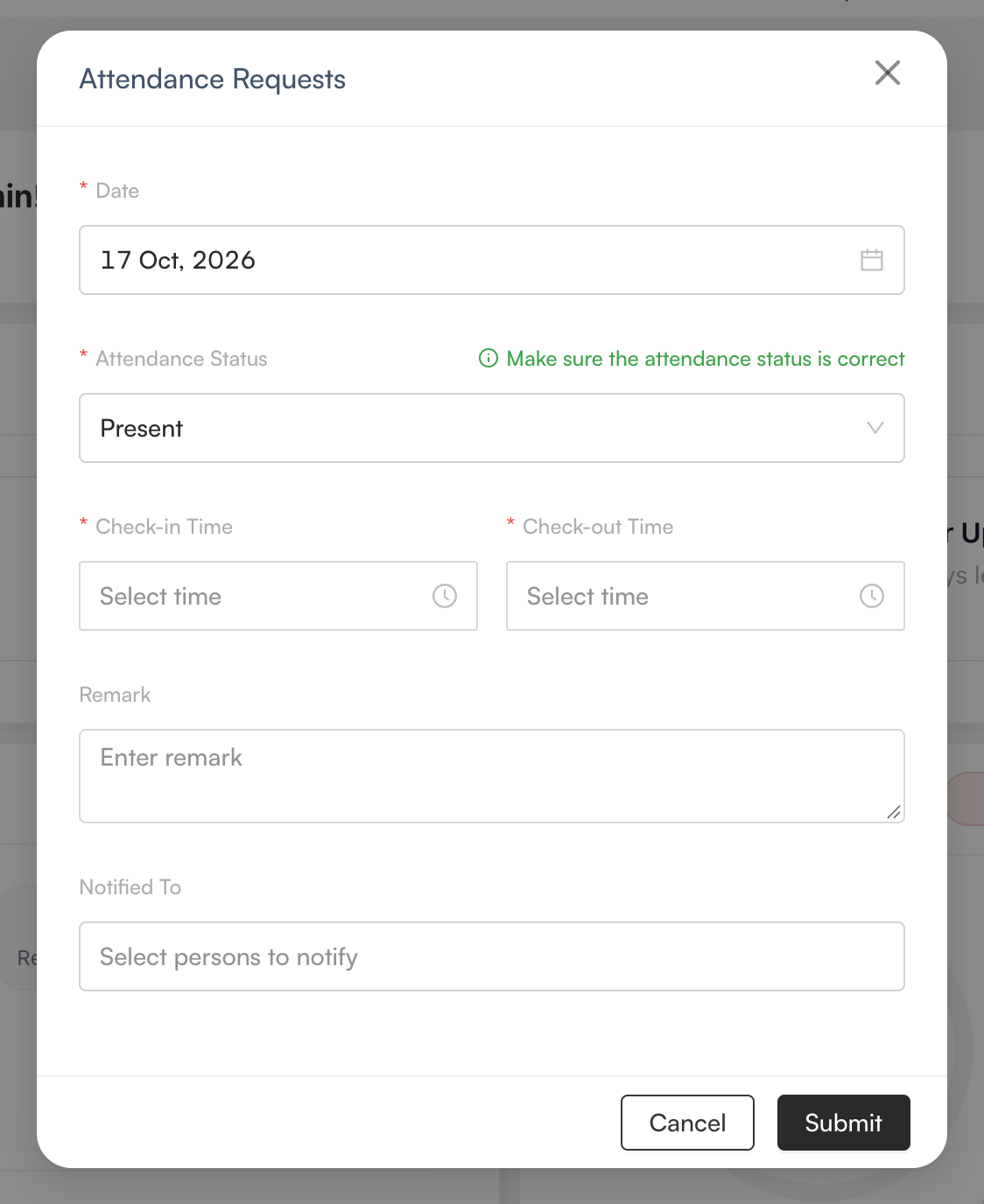
| Field | Required | What to enter |
|---|---|---|
| Date | Yes | The attendance date that needs correction. |
| Attendance Status | Yes | The status the selected date should use. Verify it carefully before submitting. |
| Check-in Time | Yes | The correct start time for the attendance record. |
| Check-out Time | Yes | The correct end time for the attendance record. |
| Remark | No | A clear explanation of why the correction is required. |
| Notified To | No | People who should be notified about the request. |
Select Submit to send the request through the configured approval workflow. Select Cancel or the X to close the form without submitting it. After submission, use My Regularization to follow its status.
Approval Requests
Approval Requests shows attendance regularization requests from team members that involve you as an approver.
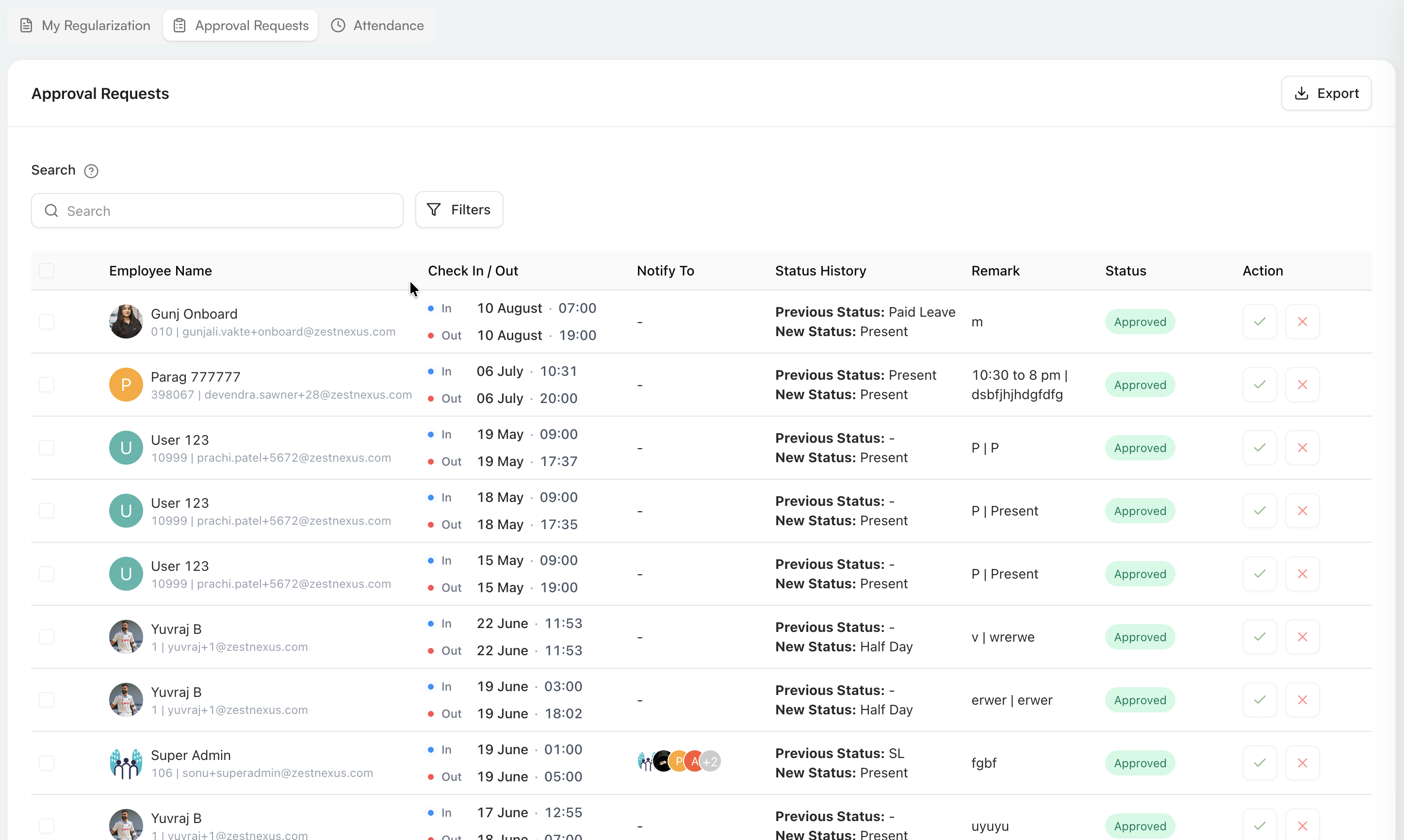
Use Search and Filters to find a request, or Export to download the available request data. The table contains the employee, proposed check-in and check-out, notified users, previous and new attendance statuses, remarks, current status, and actions.
Review the proposed time, status change, and reason before selecting the checkmark to approve or the cross to reject. Selection checkboxes are available for choosing request rows when a supported bulk action is shown.
Attendance
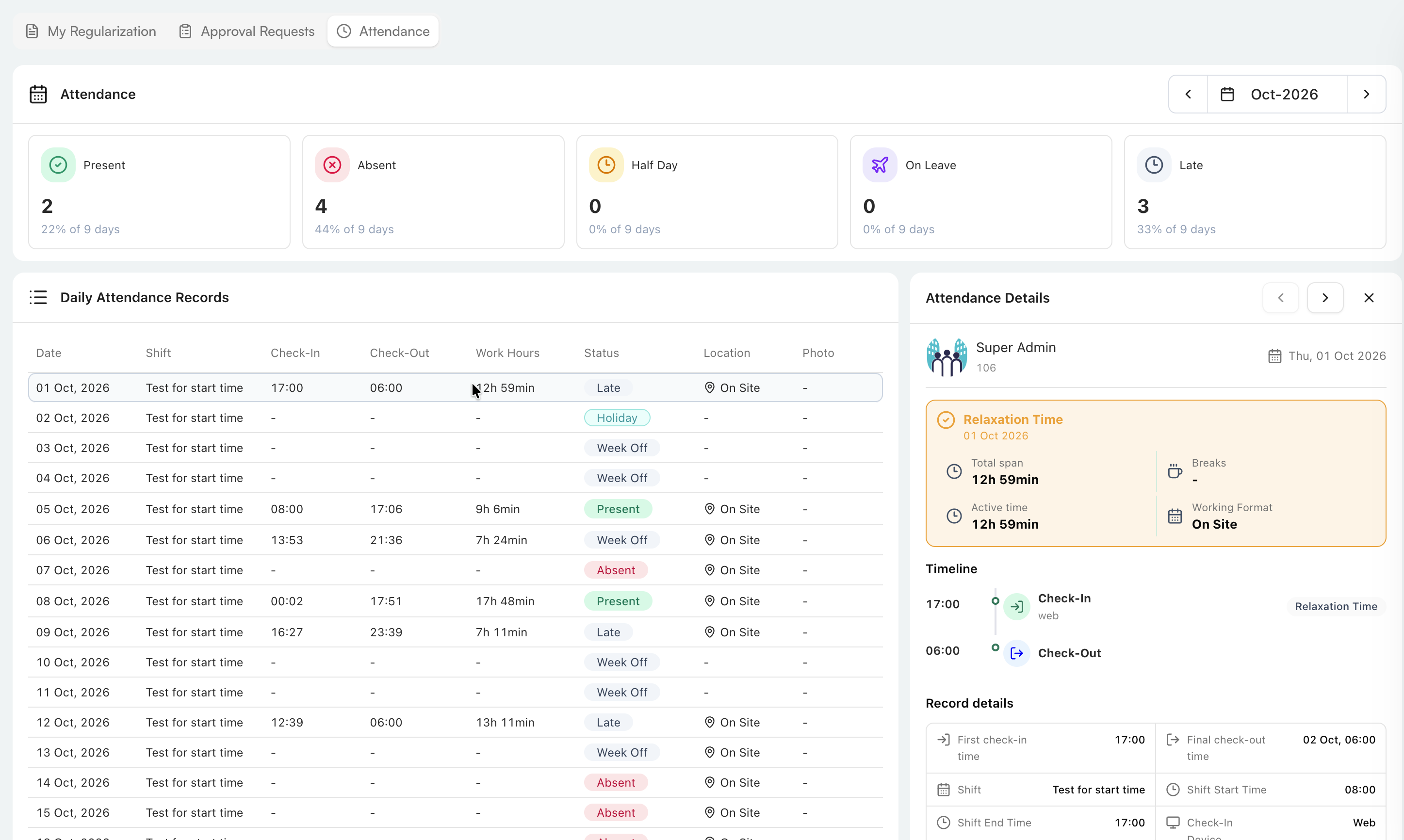
Attendance provides a monthly summary and a daily attendance register for your employee record.

Use the arrows beside the month to move backward or forward. The summary cards show totals and percentages for:
- Present
- Absent
- Half Day
- On Leave
- Late
The percentages are calculated against the days counted for the selected month.
Daily Attendance Records
The monthly table provides one row per calendar date.
| Field | What it shows |
|---|---|
| Date | The attendance date. |
| Shift | The shift assigned for that date. |
| Check-In | The first recorded check-in time. |
| Check-Out | The final recorded check-out time. |
| Work Hours | The calculated duration worked. |
| Status | The result for the day, such as present, absent, late, holiday, or week off. |
| Location | The working format or recorded location, such as on site. |
| Photo | The captured attendance image, when selfie capture is enabled. |
Select a row to open its Attendance Details panel.
Attendance Details
The detail panel explains how the selected day's result was calculated. Use the left and right arrows in the panel header to move between days, or select X to close it.
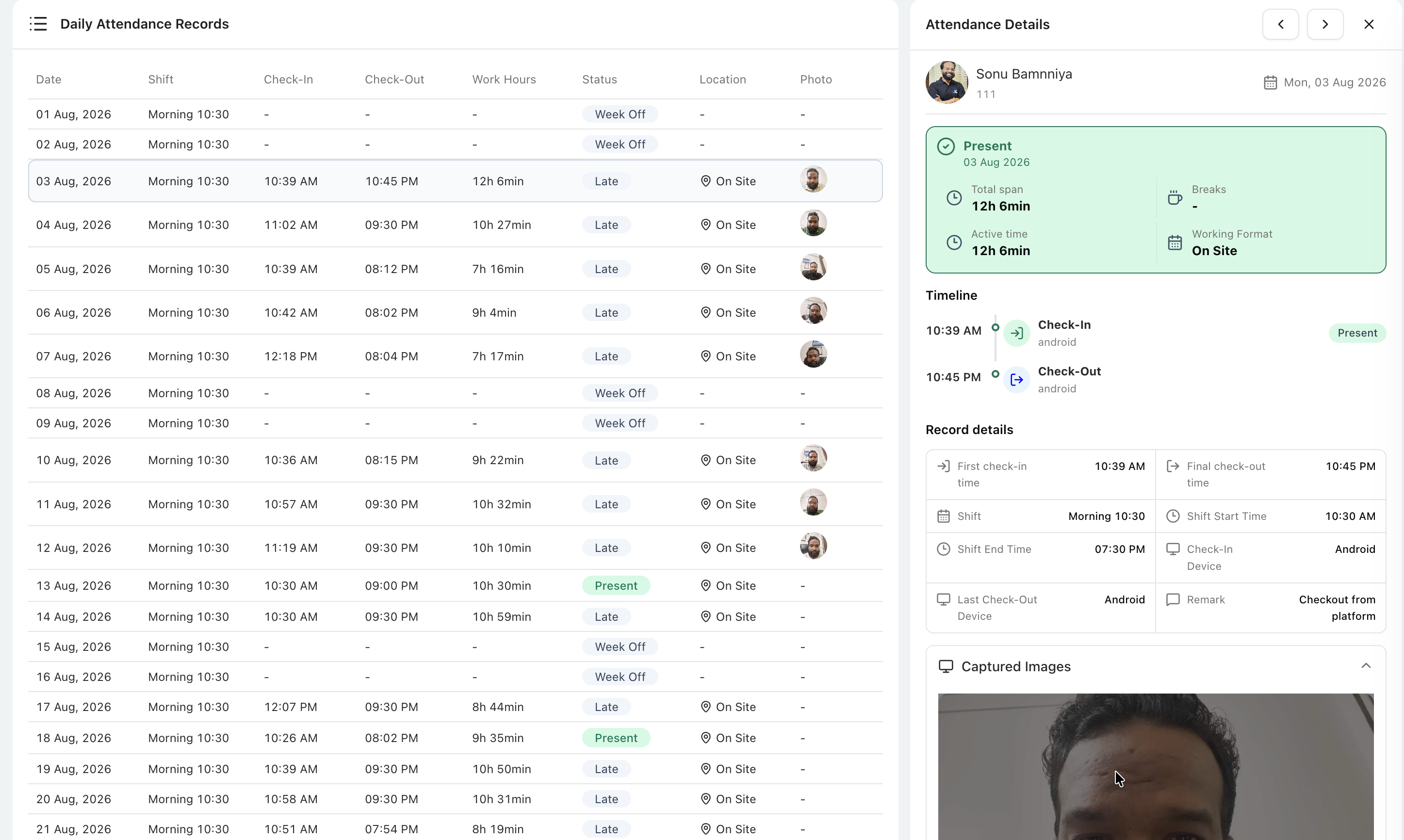
The panel can contain:
- Employee identity and attendance date.
- Day status and any applied relaxation or exception.
- Total span, Active time, Breaks, and Working Format.
- A chronological check-in and check-out timeline, including the source or device.
- First check-in and final check-out times.
- Shift name and scheduled start and end times.
- Check-in and last check-out devices.
- Attendance remarks.
Captured images and location tracking
When enabled by the organization, the attendance detail can include check-in or check-out selfies with their timestamps. It can also show a Route / Location Snapshot, total distance covered, and the recorded route on a map.
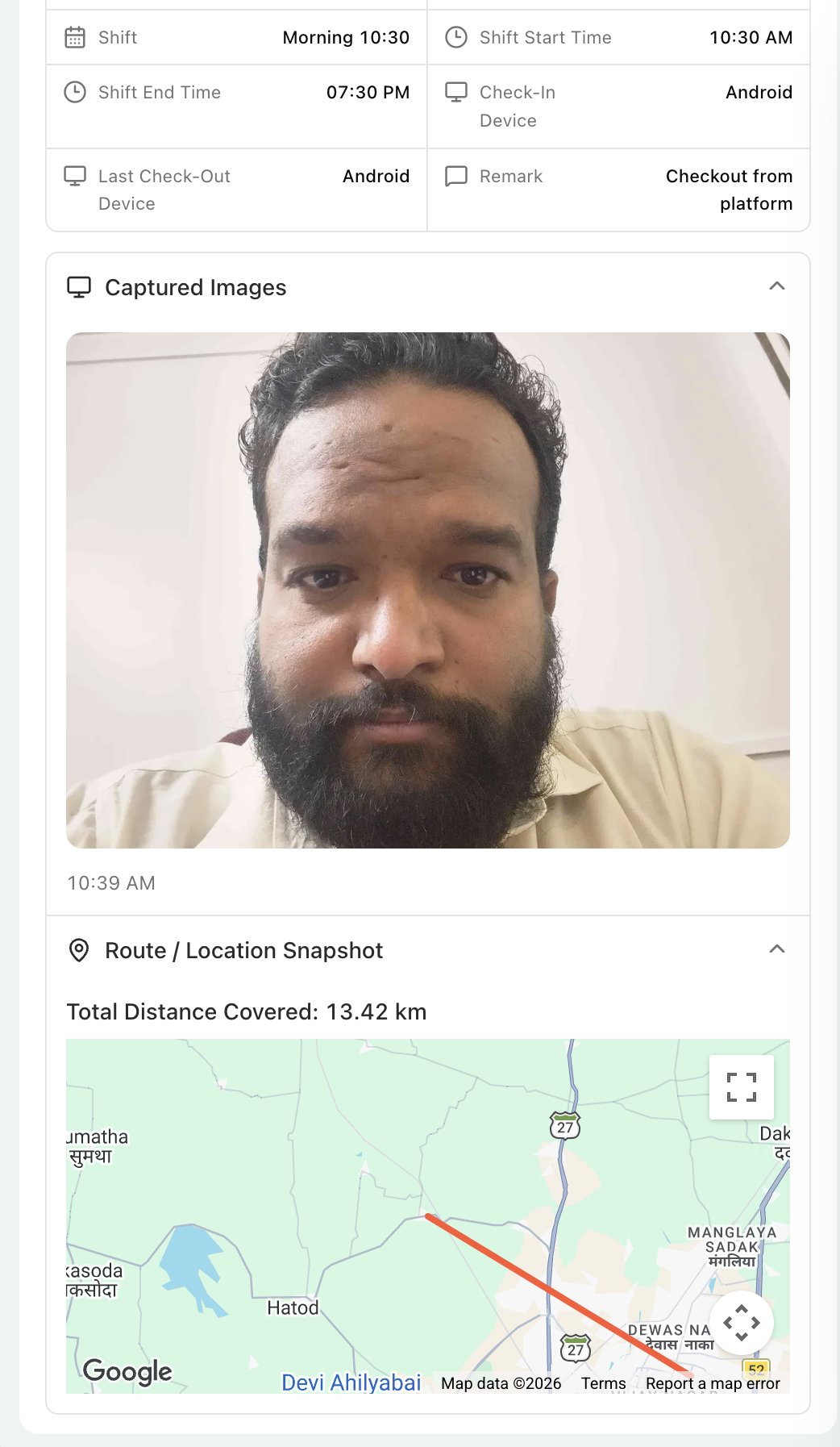
Captured images and route information are shown only when the relevant attendance method and tracking settings produce that data. Treat this information as sensitive employee data.
Attendance information is calculated using the organization's shifts, calendars, and attendance rules. Submit a regularization request when the recorded data does not reflect what happened.